We have all experienced this frustration-you just activated a weekly or monthly data package, you turn on your mobile data toggle, but your browser refuses to open a single webpage. When your phone fails to show the 4G or LTE sign in the top corner, it usually means your Access Point Name (APN) settings are missing or misconfigured. Whether you are setting up a brand-new smartphone or fixing a network glitch after a system update, getting your Telenor internet running takes just a few quick taps.
What is an APN and Why Do You Need It?
Think of an Access Point Name (APN) as the digital gateway between your smartphone and Telenor’s cellular network towers. It tells your phone the exact web path, security protocols, and IP addresses it needs to connect to the internet. Without the proper APN configured on your device, your smartphone can still make phone calls and send text messages, but it will be completely unable to download data or open internet apps.
Method 1: Automatic APN Settings via SMS (The Easiest Way)
If you don’t want to type out technical network settings manually, you can ask Telenor’s automated system to push the exact settings directly to your handset over the air. This service is completely free and works on almost all Android and keypad feature phones:
1. Open the messaging app on your smartphone.
2. Create a new SMS, type the word internet (all lowercase, without quotation marks), and send it to 131. You can also type all and send it to 131 to get both internet and MMS settings.
3. Within two to three minutes, you will receive a configuration system text message from Telenor.
4. Tap on the message and select Install or Save Settings.
5. If your phone asks for a PIN code or password during installation, type 1234 or 0000 and press OK.
6. Once saved, restart your smartphone to activate your new high-speed data connection.
Method 2: Manual APN Configuration for Android Phones
Sometimes imported smartphones (like Chinese variants or carrier-unlocked devices) block automated configuration SMS messages. If the SMS method didn’t work for you, you can easily add Telenor’s APN manually in just one minute:
1. Open your phone’s main Settings app and tap on Network & Internet or Connections.
2. Select Mobile Networks and then tap on Access Point Names (APN).
3. Tap the Add (+) button or select “New APN” from the top right menu.
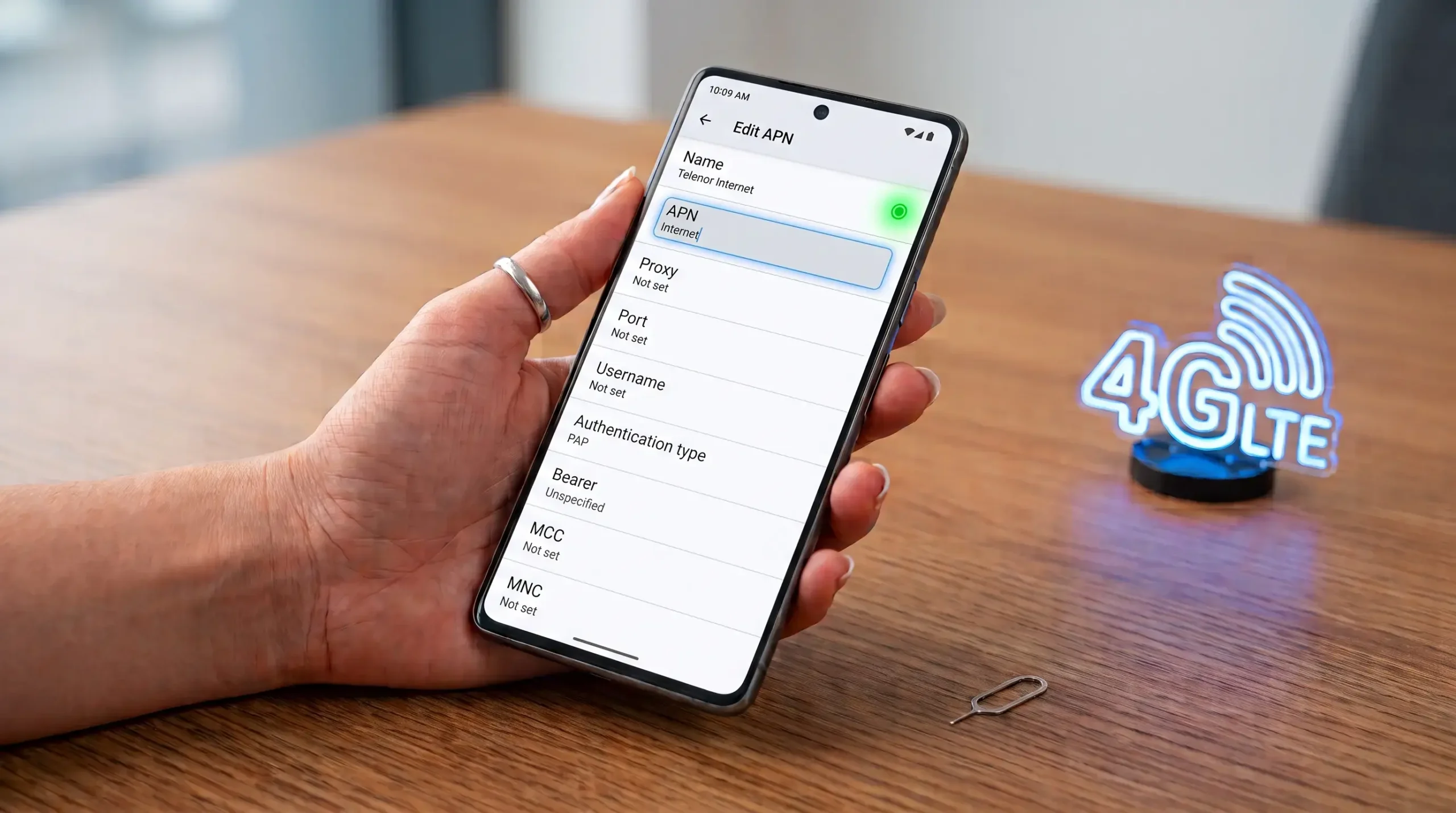
4. Enter the exact following values into the blank fields:
➤Name: Telenor Internet
➤APN: internet
➤Username: Telenor (leave blank on some newer Androids, but write “Telenor” if required)
➤Password: Telenor (leave blank if Username is blank)
➤APN Type: default
➤MCC: 410 (Do not change this; it is auto-filled for Pakistan)
➤MNC: 06 (Do not change this; it is Telenor’s network code)
5. Leave all other fields (like Proxy, Port, Server, and MMSC) completely blank or set to “Not Set”.
6. Tap the three-dot menu at the top right corner and press Save.
7. Select the new “Telenor Internet” circle on your screen so it lights up, then turn your airplane mode on and off to catch 4G signals!
Method 3: Manual APN Configuration for iPhone (iOS)
Apple iPhones usually pick up Telenor settings automatically the moment you insert your SIM. However, after iOS updates or resetting network profiles, your cellular data might stop working. Here is how to fix APN settings on an iPhone or iPad:
1. Open your iPhone Settings and tap on Cellular or Mobile Data.
2. Make sure the “Cellular Data” toggle is turned ON at the top.
3. Tap on Cellular Data Network or Mobile Data Network.
4. Under the very first section labeled “Cellular Data,” tap on the blank field next to APN and type the word: internet (all lowercase).
5. You can leave the Username and Password fields completely blank.
6. Tap the back arrow at the top left to automatically save your settings. Toggle your cellular data off and back on to see your 4G or LTE badge appear!
Method 4: How to Reset Network Settings if Data Still Won’t Work
What if you have typed the exact APN, your balance is full, and your data package is active, but your phone still refuses to browse? Over time, old Wi-Fi profiles and corrupted Bluetooth caches can freeze your phone’s cellular modem. The best solution is a quick network reset:
◉ On Android: Go to Settings > System > Reset Options > tap on Reset Wi-Fi, mobile & Bluetooth. Press “Reset Settings” and confirm with your phone lock PIN.
◉ On iPhone: Go to Settings > General > Transfer or Reset iPhone > Reset > tap on Reset Network Settings. Enter your passcode and let the device restart.
Note: Resetting your network settings will not delete your photos, contacts, or apps. It will only erase saved Wi-Fi passwords and refresh your cellular APN back to factory defaults.
Frequently Asked Questions
Having trouble with Telenor mobile internet? These FAQs cover Telenor internet settings, 4G APN configuration, mobile data problems, and the easiest ways to get your Telenor internet working.